Pinterest Video Downloader Chrome Extension: The Complete Guide
If you download Pinterest videos regularly, you already know the drill. Find the pin, copy the link, open a new tab, paste the link, click download. It works fine — but after doing it fifty times, it gets old fast.
That's exactly why the Pin Video Download Chrome Extension exists. Instead of jumping between tabs every time you want to save something, a download button appears directly on the Pinterest page. You click it once and the video saves. Done.
This guide covers everything about the Pinterest Video Downloader Chrome Extension — how to install it, how to use it, what it can and can't do, and how it compares to using the web tool. Whether you're new to downloading Pinterest content or just looking for a faster workflow, this is worth reading.
What Is the Pin Video Download Chrome Extension?
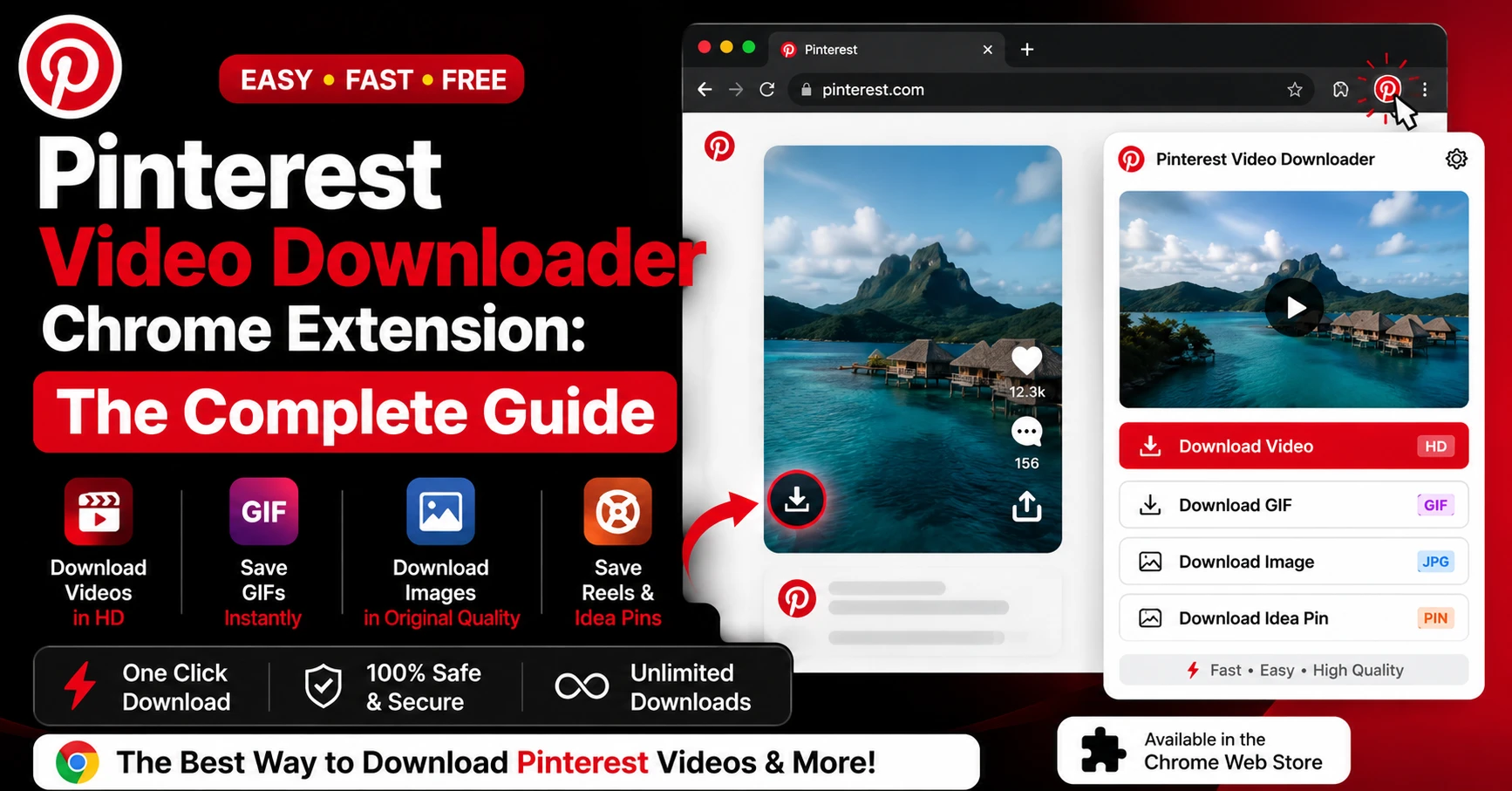
The Chrome Extension is a browser add-on that sits inside your Chrome browser and adds download buttons directly onto Pinterest's interface. When you're browsing Pinterest and you hover over a video pin, a download button appears on the pin itself — no copying links, no switching tabs, no pasting anything.
It connects to the same backend as Pin Video Download, so you're getting the same original-quality downloads, the same watermark-free files, and the same support for videos, GIFs, Reels, and Idea Pins.
The difference is purely about speed and convenience. If you download one or two videos a week, the web tool is perfectly fine. If you're regularly saving content for mood boards, design research, or social media work, the extension saves a meaningful amount of time.
What the Extension Does
When installed, the extension adds a small download icon that appears when you hover over video pins on Pinterest. You click it, the extension processes the pin in the background, and the file downloads to your default Downloads folder. That's the whole workflow.
It works on pinterest.com in any Chrome window — the main feed, board views, search results, and individual pin pages.
How to Install the Pinterest Video Downloader Chrome Extension
Installation takes about a minute and you only have to do it once.
Step 1: Open the Chrome Web Store Open Google Chrome on your computer and go to the Chrome Web Store. You can get there by typing "chrome.google.com/webstore" in the address bar, or just search "Chrome Web Store" and click the first result.
Step 2: Search for Pin Video Download In the search bar inside the Chrome Web Store, type "Pinterest Video Downloader Pin Video Download." Look for the official extension from pinvideodownload.net.
Step 3: Click "Add to Chrome" Click the blue "Add to Chrome" button on the extension page. Chrome will show a small popup asking you to confirm — click "Add Extension" to proceed.
Step 4: Wait for installation The extension installs in a few seconds. You'll see a small icon appear in your Chrome toolbar — usually in the top-right corner near the address bar. If you don't see it immediately, click the puzzle piece icon in the toolbar to find it in your extensions list.
Step 5: Go to Pinterest Navigate to pinterest.com and start browsing. Hover over any video pin and you should see the download button appear. That's it — you're set up.
Alternatively, you can install it directly from pinvideodownload.net/extension which links straight to the Chrome Web Store listing.
How to Use the Extension on Pinterest
Once it's installed, using it is genuinely simple. Here's what the actual experience looks like day to day.
Downloading from the Pinterest feed As you scroll through your Pinterest home feed or a board, hover your mouse over any video pin. A small download icon appears in the corner of the pin. Click it once. The extension processes the link in the background — usually takes 2 to 3 seconds — and the file downloads automatically to your Downloads folder.
Downloading from a pin's detail page If you've clicked into a specific pin to view it full-size, the download button appears in a fixed position on the page, usually near the pin image or video player. Same process — one click and it downloads.
Downloading from search results The extension works on Pinterest search results pages too. Search for any topic, hover over video pins in the results, and the download button appears the same way.
Where Do the Files Save?
Downloaded files go to your browser's default download location — usually the Downloads folder on your computer. You can change this in Chrome's settings under Settings → Downloads if you want files to go somewhere else like a dedicated folder for Pinterest content.
Extension vs. Web Tool: Which Should You Use?
Both options use the same download engine, so quality is identical either way. The choice comes down to how you work.
Use the Chrome Extension if: You download Pinterest content frequently. You work on a desktop or laptop. You want the fastest possible workflow. You're building mood boards or doing design research where you're saving lots of pins in one session.
Use the web tool at pinvideodownload.net if: You're on a mobile device. You use a browser other than Chrome. You only download occasionally and don't want a permanent extension installed. You're sharing the tool with someone else who doesn't want to install anything.
Honestly, if you're on a desktop and download more than a few videos a week, the extension is worth it. The time you save adds up faster than you'd expect.
What Content Types Does the Extension Support?
The extension handles the same content types as the main web tool.
Standard video pins — Regular MP4 videos uploaded to Pinterest. These are the most common type and work perfectly with the extension every time.
Pinterest Reels — Short vertical video clips in Pinterest's newer Reels format. The extension detects these automatically and downloads them as MP4 files with synced audio.
Idea Pins — Pinterest's multi-slide story format. The extension supports Idea Pins and extracts the video content from them.
Animated GIFs — Pinterest often stores these as MP4 loops, which the extension handles natively. For more control over GIF downloads, the dedicated Pinterest GIF Downloader gives you additional format options.
Image pins — The extension focuses on video content. For high-resolution image downloads, the Pinterest Image Downloader is the better option.
Privacy and Permissions: What the Extension Can Access
This is something worth understanding before you install any browser extension.
The Pin Video Download extension requests access to pinterest.com specifically — not your entire browsing history, not your other tabs, not your passwords or personal data. It only activates when you're on Pinterest.
It doesn't track which pins you download, doesn't send your browsing data anywhere, and doesn't inject ads into your Pinterest experience. The extension is purely functional — it reads the pin page when you click download, finds the video URL, and triggers the download.
If you ever want to remove it, go to Chrome's Extensions page (chrome://extensions), find Pin Video Download, and click Remove. Clean and simple.
Troubleshooting the Chrome Extension
Most people install it and never have issues. But occasionally things go sideways.
The download button isn't appearing on pins
First, make sure you're on pinterest.com and not a Pinterest-related site or Pinterest's business dashboard. The extension only activates on the main Pinterest interface. If the button still isn't showing, try refreshing the Pinterest page — sometimes the extension needs a fresh page load to inject properly.
The extension icon has disappeared from my toolbar
Chrome sometimes moves extensions out of the main toolbar to keep things tidy. Click the puzzle piece icon in your toolbar and look for Pin Video Download in the list. Click the pin icon next to it to keep it visible in your toolbar permanently.
The download starts but the file is empty or corrupted
This usually happens when Pinterest's servers are temporarily slow or rate-limiting requests. Wait 30 seconds and try downloading the same pin again. If it keeps happening, try the web tool at pinvideodownload.net as an alternative for that specific pin.
The extension stopped working after a Pinterest update
Pinterest occasionally updates their interface, which can temporarily break how extensions interact with the page. If this happens, check for an update to the extension itself — go to chrome://extensions, enable Developer Mode, and click "Update." We push fixes quickly whenever Pinterest changes things on their end.
Chrome says the extension is "not from the Chrome Web Store"
This warning appears if you try to install the extension from a source other than the official Chrome Web Store. Always install from the Web Store or from the official link at pinvideodownload.net/extension to avoid this.
Tips for Getting the Most Out of the Extension
A few things that make the extension more useful once you've got it installed.
Set a dedicated download folder for Pinterest content. Go to Chrome Settings → Downloads and either set a permanent folder or enable "Ask where to save each file." This keeps your Pinterest downloads organized and separate from other files.
Use it alongside the web tool for mobile. The extension only works on desktop Chrome. When you're on your phone, use the web tool at pinvideodownload.net through Safari or Chrome mobile. Both tools work from the same account-free system, so there's no syncing needed.
Download while you browse, not after. The extension works best when you're actively browsing Pinterest. Instead of saving pins to a board and coming back later to download, just click the download button as you go. It's faster and you won't lose content if a pin gets deleted.
Frequently Asked Questions
Wrapping Up
If you're downloading Pinterest videos regularly, the Chrome Extension is genuinely one of those small quality-of-life improvements that makes a real difference. One click on the pin instead of copying links and switching tabs — it sounds minor but it adds up.
Install it from the Chrome Web Store via pinvideodownload.net/extension, browse Pinterest the way you normally do, and click download whenever you find something worth keeping. That's really all there is to it.
And if you're ever on mobile or a non-Chrome browser, the web tool at pinvideodownload.net is always there as a backup.
Related Guides
How to Download Pinterest Reels Without Watermark (Full Guide)
You found a Pinterest Reel that's exactly what you needed. Maybe it's a styling video, a satisfying DIY clip, a workout routine, or just an aesthetic loop that fits perfectly into a mood board you're building. You want to save it — cleanly, without some random watermark slapped across the middle of it. Here's the…
How to Save Pinterest GIFs to Camera Roll (iPhone & Android)
GIFs on Pinterest are weirdly addictive. Whether it's a satisfying slime loop, a minimalist animation, a cooking technique, or just a funny reaction clip — you find one and suddenly you need it on your phone. Like, immediately. The problem? Pinterest treats GIFs exactly the same way it treats videos — you can save them…
Latest From Our Blog
Try Our Free Pinterest Download Tools
Need to download other media formats? Save any content from Pinterest instantly using our direct extraction tools:
Pinterest Video Downloader →
Extract and download public Pinterest videos in high-definition MP4 format.
Pinterest GIF Downloader →
Download animated GIF loops or convert them to lightweight MP4 videos.
Pinterest Image Downloader →
Save high-resolution JPG images and carousels in original HD quality.
Pinterest Reel Downloader →
Save Idea Pins and short Pinterest video stories with synced audio.