How to Download Pinterest Videos on iPhone - My Blog
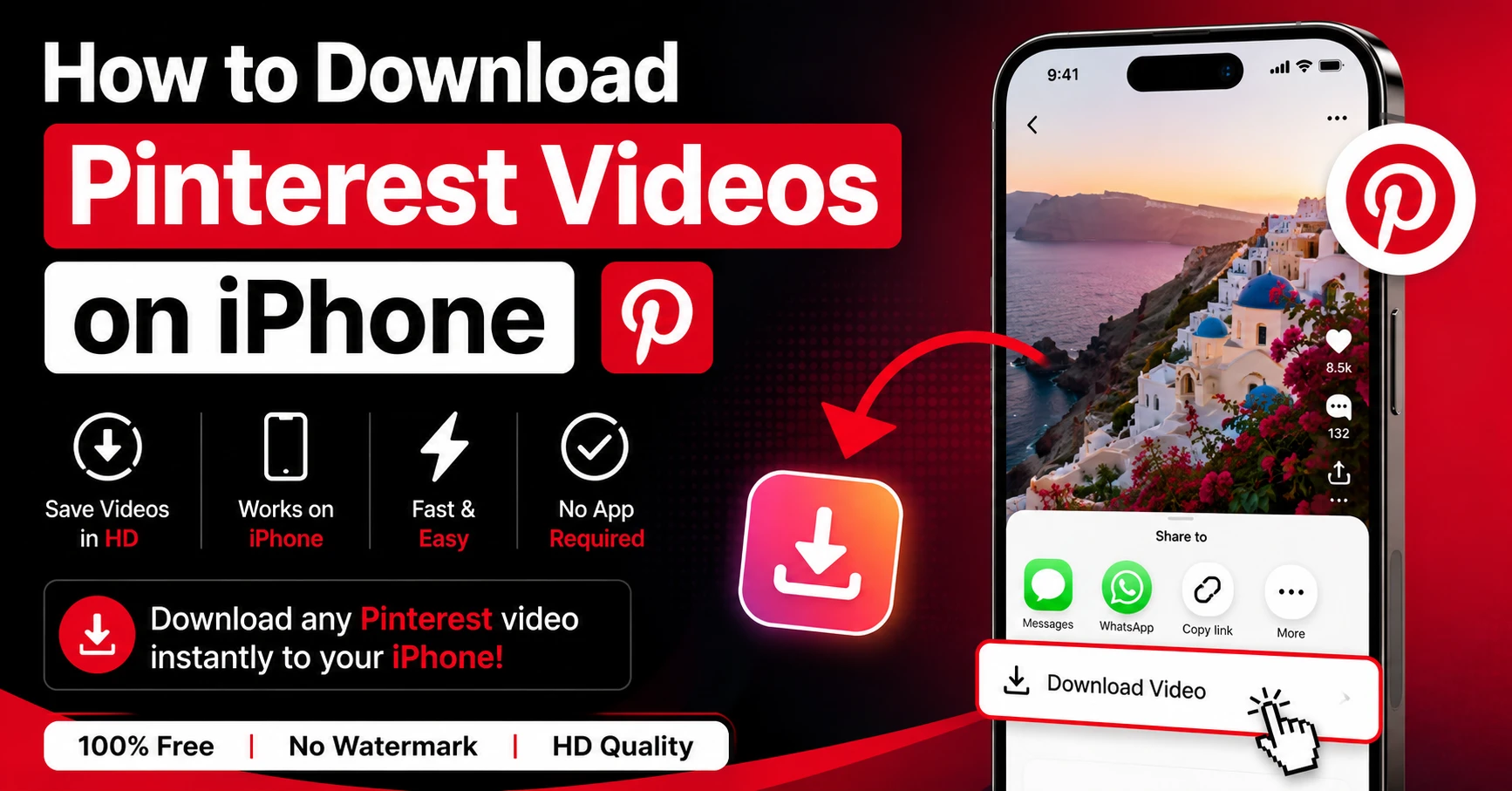
You found the perfect video on Pinterest. Maybe it's a satisfying recipe clip, a cool design loop, or a fashion reel you want to save for later. You tap the share button and… nothing. No download option. Just "Copy Link" and a bunch of sharing icons.
Here's the deal — Pinterest doesn't let you save videos directly to your iPhone's camera roll. Never has. It's frustrating, especially when you're trying to build a mood board or save inspiration for a project. But the good news is, there's a really simple fix that takes about 30 seconds.
In this post, we'll walk through exactly how to download Pinterest videos on iPhone — step by step, no apps to install, no account needed.
Why Can't You Save Pinterest Videos Directly on iPhone?
This is probably the most common question we get. Pinterest allows you to "save" pins to your boards, but that just bookmarks them inside the app. The actual video file stays on Pinterest's servers — you never get a copy on your device.
There's no download button. No "Save to Camera Roll" option. Pinterest made it this way intentionally, partly for copyright reasons and partly to keep you inside their app.
So what do most people do? They screen record it. And honestly, that's a terrible solution.
Why Screen Recording Doesn't Work Well
Screen recordings on iPhone capture whatever is on your screen — including the Pinterest UI, notifications that pop up, and your status bar. The quality drops significantly because you're recording a compressed video playback rather than the original file.
The audio can also desync, especially on longer clips. And if someone calls you mid-recording? Ruined.
There's a much better way.
The Easiest Way to Download Pinterest Videos on iPhone
The simplest method is using Pin Video Download — a free web-based tool that works directly in Safari. No app download, no sign-up, nothing to install. You just paste the Pinterest link and download the original video file.
It works by fetching the actual MP4 file from Pinterest's servers — the same file that plays when you watch it in the app. That means you get the full quality version, not a compressed screen capture.
A lot of our users tell us they were skeptical at first because most downloader sites are absolute spam traps. This one is different — no pop-ups, no redirects, no weird ads. Just paste and download.
What You'll Need
Just two things: the Pinterest app (or Pinterest in Safari) and Safari browser on your iPhone. That's it.
Step-by-Step: How to Download Pinterest Videos on iPhone
This whole process takes under a minute once you've done it once.
Step 1: Find the video you want to save Open Pinterest on your iPhone and navigate to the video pin you want to download. It can be a regular video pin, a Reel, or an Idea Pin — all of them work.
Step 2: Copy the link Tap the share icon on the pin — it looks like a paper airplane or an upward arrow depending on your app version. From the share menu, tap "Copy link." The link is now in your clipboard.
Step 3: Open Safari and go to pinvideodownload.net Switch over to Safari and type in pinvideodownload.net. The site loads fast and works perfectly on mobile.
Step 4: Paste the Pinterest link Tap the input box at the top of the page and paste your link. You can tap the "Paste" button on the site or just long-press the text field and select Paste from the menu.
Step 5: Tap the Download button Hit the red Download button. The tool will take 2-3 seconds to process the link and find the video file.
Step 6: Save the video Once it loads, you'll see a download button for the video. Tap it. Safari will either start downloading immediately or ask for confirmation — tap "Download" if prompted.
Step 7: Find your video in the Files app Here's where a lot of people get confused. The video doesn't go straight to your Photos app — it saves to the Downloads folder inside the Files app first. Open Files, go to Downloads, and you'll find it there. From there, you can tap and hold the video and select "Save Video" to move it to your camera roll.
Troubleshooting: When Things Don't Go As Planned
Most of the time this works perfectly. But occasionally things go sideways. Here's what to do.
The video plays but doesn't download
This happens sometimes in Safari. Instead of tapping the download button once, try long-pressing it and selecting "Download Linked File." This forces Safari to save it rather than trying to play it inline.
I can't find the video after downloading
Check the Files app first — go to Browse, then Downloads. If it's not there, check if Safari's downloads are being saved to iCloud Drive instead of "On My iPhone." You can change this in Settings → Safari → Downloads.
The tool says the link is invalid
Make sure you copied the full Pinterest link. Sometimes when you copy from the Pinterest app, it copies a shortened "pin.it" link — that's fine, our tool handles those. But if you copied something else by mistake, go back and re-copy directly from the pin's share menu.
The video has no audio
This is rare but it can happen with certain pins. Pinterest sometimes stores video and audio as separate files. Our tool merges them automatically, but if you're getting a silent video, try refreshing the page and downloading again.
Can You Download Pinterest GIFs and Images on iPhone Too?
Yes, and the process is almost identical. If you want to save an animated GIF from Pinterest, head over to our Pinterest GIF Downloader — it's built specifically for animated loops and handles them better than the main tool.
For high-resolution images and photo pins, use our Pinterest Image Downloader. It grabs the original full-size image file, which is way better than screenshotting.
And if you're trying to save Pinterest Reels or short video clips specifically, our Pinterest Reel Downloader is the right tool for that.
Frequently Asked Questions
Wrapping Up
Downloading Pinterest videos on iPhone isn't something the app makes easy — but it doesn't have to be complicated either. Copy the link, paste it into pinvideodownload.net, tap download, and find it in your Files app. That's genuinely all there is to it.
No apps, no accounts, no screen recording with terrible quality. Just the original video file saved straight to your iPhone in under a minute.
Give it a try next time you find a video worth keeping.
Related Guides
How to Download Pinterest Reels Without Watermark (Full Guide)
You found a Pinterest Reel that's exactly what you needed. Maybe it's a styling video, a satisfying DIY clip, a workout routine, or just an aesthetic loop that fits perfectly into a mood board you're building. You want to save it — cleanly, without some random watermark slapped across the middle of it. Here's the…
How to Save Pinterest GIFs to Camera Roll (iPhone & Android)
GIFs on Pinterest are weirdly addictive. Whether it's a satisfying slime loop, a minimalist animation, a cooking technique, or just a funny reaction clip — you find one and suddenly you need it on your phone. Like, immediately. The problem? Pinterest treats GIFs exactly the same way it treats videos — you can save them…
Latest From Our Blog
Try Our Free Pinterest Download Tools
Need to download other media formats? Save any content from Pinterest instantly using our direct extraction tools:
Pinterest Video Downloader →
Extract and download public Pinterest videos in high-definition MP4 format.
Pinterest GIF Downloader →
Download animated GIF loops or convert them to lightweight MP4 videos.
Pinterest Image Downloader →
Save high-resolution JPG images and carousels in original HD quality.
Pinterest Reel Downloader →
Save Idea Pins and short Pinterest video stories with synced audio.