How to Save Pinterest GIFs to Camera Roll
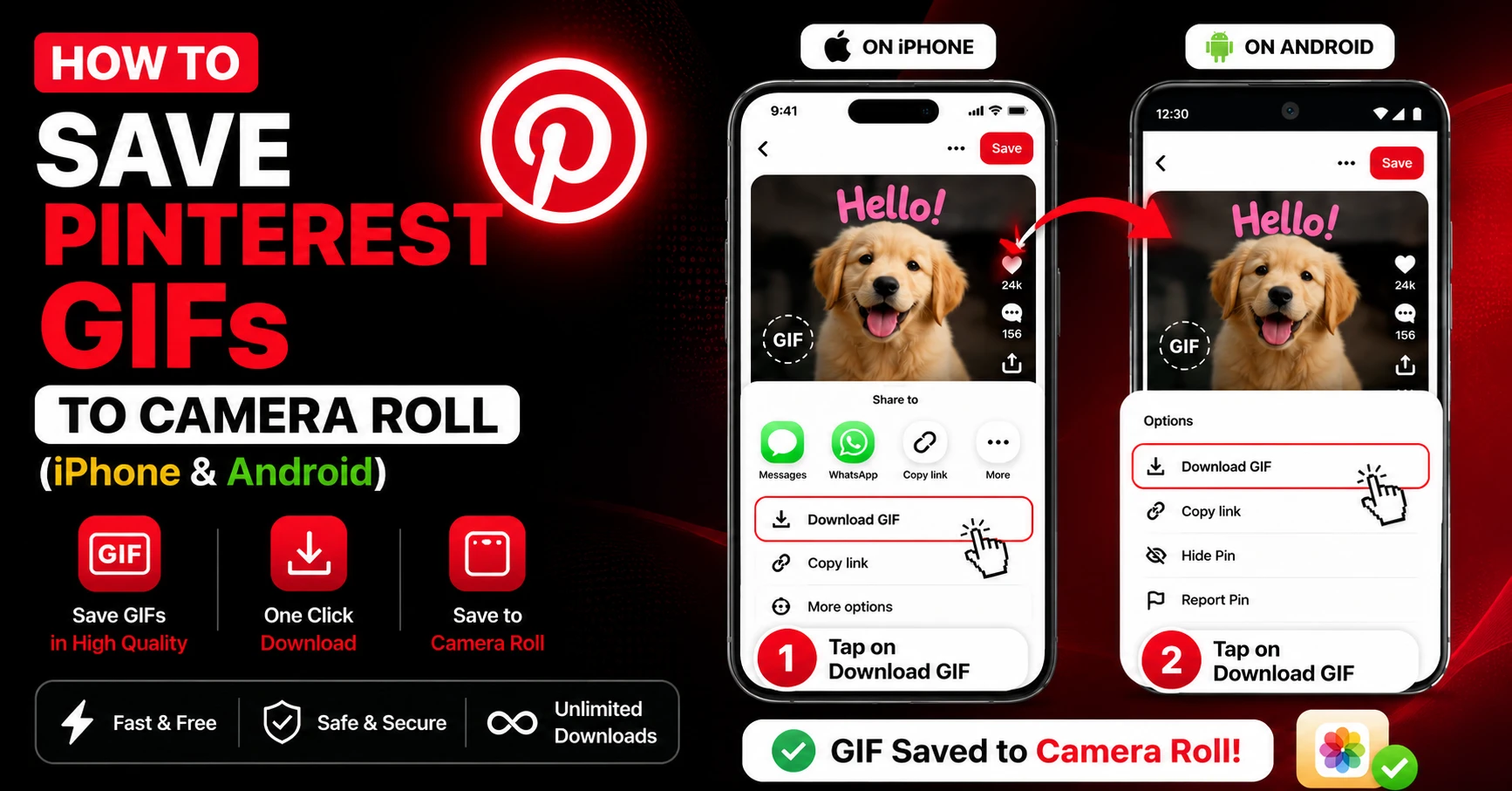
GIFs on Pinterest are weirdly addictive. Whether it's a satisfying slime loop, a minimalist animation, a cooking technique, or just a funny reaction clip — you find one and suddenly you need it on your phone. Like, immediately.
The problem? Pinterest treats GIFs exactly the same way it treats videos — you can save them to a board, but getting them onto your actual camera roll is a different story. There's no download button. No "Save to Photos." Nothing.
And the usual workarounds are kind of painful. Screen recording a GIF loop looks terrible. Screenshots only capture a single frozen frame, which completely defeats the point. So what actually works?
This guide covers exactly how to save Pinterest GIFs to your camera roll on both iPhone and Android — the right way, with the actual animated file intact.
Why Saving Pinterest GIFs Is Trickier Than It Looks
Here's something most people don't realize: Pinterest doesn't always store GIFs as GIF files.
When creators upload animated content to Pinterest, the platform often converts it to a silent MP4 video loop behind the scenes. This makes it load faster and look smoother, but it also means what you see playing on your screen might technically be a video file, not a traditional GIF.
This is why a lot of GIF downloaders fail on Pinterest content — they're looking for a .gif file extension and not finding one. The animation is actually sitting there as an MP4 loop, and you need a tool that can handle both formats.
The Screenshot Problem
A lot of people try to just screenshot a GIF and wonder why it comes out as a still image. That's because a screenshot captures one frame of whatever is on your screen at that exact moment. You're not capturing the animation — just a single frozen frame of it.
The only way to get the actual animated file is to download the source file itself, not try to capture the screen.
The Easiest Way to Save Pinterest GIFs
The cleanest method is using the Pinterest GIF Downloader at Pin Video Download. It's built specifically to handle Pinterest's animated content — whether the file is stored as a true GIF or as a silent MP4 loop.
You paste the Pinterest link, the tool identifies the file type automatically, and you download the original animated file. No conversion, no quality loss, no watermarks.
A lot of our users come to the GIF downloader after trying the general video downloaders and getting confused about why the file came out as an MP4. The dedicated GIF tool handles the format detection for you, so you don't have to think about it.
What Format Will You Get?
Honestly, it depends on what the original creator uploaded. If they uploaded a true GIF, you get a GIF. If Pinterest converted it to an MP4 loop, you get the MP4. Both will play as animations on your phone — the main difference is file size. MP4 loops are usually much smaller and work better for sharing on most platforms anyway.
Step-by-Step: Save Pinterest GIFs on iPhone
Let's start with iPhone since Safari handles downloads a little differently than Chrome on Android.
Step 1: Find the GIF on Pinterest Open the Pinterest app and locate the animated pin you want to save. You'll know it's a GIF or animation because it loops automatically when you're viewing it.
Step 2: Tap the share icon and copy the link Tap the share button on the pin — looks like a paper airplane. From the share menu, select "Copy link." Pinterest copies the pin URL to your clipboard.
Step 3: Open Safari and go to the GIF Downloader Open Safari on your iPhone and go to pinvideodownload.net/pinterest-gif-downloader. This brings you directly to the dedicated GIF tool.
Step 4: Paste the link Tap the input field and paste your Pinterest link. You can use the built-in Paste button on the site or long-press the field and tap Paste from the menu.
Step 5: Tap Download Hit the Download button. The tool will process your link and identify whether the content is a GIF or MP4 loop.
Step 6: Save the file Tap the download link that appears. Safari will download the file and save it to your Downloads folder inside the Files app.
Step 7: Move it to your Camera Roll Open the Files app, go to Downloads, and find your file. Long-press on it and tap "Save to Photos" or "Save Image" depending on the file type. It will land in your Camera Roll and play as an animation when you tap it.
Step-by-Step: Save Pinterest GIFs on Android
Android is actually a bit smoother for this because Chrome saves files directly to your Downloads folder without extra steps.
Step 1: Copy the Pinterest link Open Pinterest, find the animated pin, tap the share icon, and select "Copy link."
Step 2: Open Chrome and visit the GIF Downloader Open Chrome and go to pinvideodownload.net/pinterest-gif-downloader.
Step 3: Paste and download Paste your link into the input box and tap the Download button. Chrome will handle the download automatically and save the file to your Downloads folder.
Step 4: Find it in your Gallery Open your Gallery or Files app and check the Downloads folder. The animated file will be there. On most Android devices, GIFs play automatically in the Gallery — just tap to open and it loops right away.
How to Make GIFs Actually Play in Your Camera Roll
Here's something that trips people up — especially on iPhone.
When you save a GIF file to your iPhone Photos app, it doesn't always play automatically in the grid view. You need to tap on it to open it, and then it will loop. If it still shows as a still image, that usually means iOS saved it as a photo instead of an animation.
Fix for iPhone: Check the File Format
If your GIF isn't animating in Photos, here's the thing — it might have been downloaded as a static image by mistake. Go back to the Files app and check if the file has a .gif extension. If it does, try sharing it from Files directly to Photos using the share sheet and selecting "Save Image." This usually preserves the animation.
If the file was an MP4 loop, it will be in your Photos app under Videos, not Photos. Open it there and it will play as an animation.
Fix for Android: Use a GIF-Friendly Gallery App
Some Android Gallery apps don't animate GIFs properly in the thumbnail view. If your GIF looks like a still image in the Gallery, tap to open it — it should animate in the full view. If it doesn't, try opening it with a different app like Google Photos, which handles GIF playback reliably.
Can You Share Pinterest GIFs to WhatsApp, Instagram, and iMessage?
Yes, and this is honestly one of the main reasons people want to save Pinterest GIFs in the first place.
Once the file is in your camera roll or Downloads folder, sharing it works just like any other image or video.
For WhatsApp, open a chat, tap the attachment icon, select Gallery, and pick your GIF. WhatsApp will send it as an animation if it's a GIF file, or as a short video if it's an MP4.
For Instagram Stories, GIF files sometimes get imported as still images depending on your iOS version. The MP4 loop format actually works better here — Instagram treats it as a short video and plays it on loop automatically.
For iMessage, GIFs shared from Photos animate perfectly in the conversation view.
Downloading Other Pinterest Media While You're At It
If you're already on Pinterest saving content, it's worth knowing about the other tools available.
For standard video pins and longer clips, the main Pinterest Video Downloader handles those. For short-form vertical videos and Reels specifically, the Pinterest Reel Downloader is the right tool.
And if you want high-resolution still images from Pinterest — photography, design inspiration, fashion shots — the Pinterest Image Downloader fetches the original full-size file.
Troubleshooting: When Pinterest GIF Downloads Go Wrong
The downloaded file is a still image, not an animation
This usually means the pin wasn't actually a GIF — it was a static image that just looked like it might be animated. Check the original pin on Pinterest and make sure it actually loops when you watch it.
The file downloaded but it's an MP4, not a GIF
This is normal. Pinterest converts a lot of GIFs to MP4 format on their end. The MP4 version plays as an animation just fine — it just has a different file extension. Most apps and platforms handle MP4 loops the same way they handle GIFs.
The download link isn't appearing
Refresh the page and try again with a fresh paste of the link. Sometimes the tool needs a second attempt if Pinterest's servers are slow to respond. Also double-check that the pin is still public and hasn't been deleted.
The animation looks blurry or low quality after downloading
The quality of what you download is tied directly to what was uploaded originally. If the source GIF was low resolution, the downloaded file will be too — our tool fetches the original, so it can't improve on what's already there.
Frequently Asked Questions
Wrapping Up
Saving Pinterest GIFs to your camera roll isn't as simple as it should be, but it's not complicated once you know the right tool to use. The key things to remember: Pinterest often converts GIFs to MP4 loops, screenshotting only gets you a still frame, and the dedicated Pinterest GIF Downloader handles all of this automatically.
Copy the link, paste it in, download the file, move it to your camera roll. That's the whole process.
Next time you find an animated pin worth keeping, you won't have to settle for a screenshot or a blurry screen recording.
Related Guides
How to Download Pinterest Reels Without Watermark (Full Guide)
You found a Pinterest Reel that's exactly what you needed. Maybe it's a styling video, a satisfying DIY clip, a workout routine, or just an aesthetic loop that fits perfectly into a mood board you're building. You want to save it — cleanly, without some random watermark slapped across the middle of it. Here's the…
How to Download Pinterest Videos on Android
You're scrolling through Pinterest on your Android phone and you find a video you absolutely need to keep. A DIY tutorial, an aesthetic loop, a recipe you want to try later. You look for a download button and… it's not there. Pinterest doesn't give Android users a way to save videos locally. You can pin…
Latest From Our Blog
Try Our Free Pinterest Download Tools
Need to download other media formats? Save any content from Pinterest instantly using our direct extraction tools:
Pinterest Video Downloader →
Extract and download public Pinterest videos in high-definition MP4 format.
Pinterest GIF Downloader →
Download animated GIF loops or convert them to lightweight MP4 videos.
Pinterest Image Downloader →
Save high-resolution JPG images and carousels in original HD quality.
Pinterest Reel Downloader →
Save Idea Pins and short Pinterest video stories with synced audio.