How to Download Pinterest Reels Without Watermar
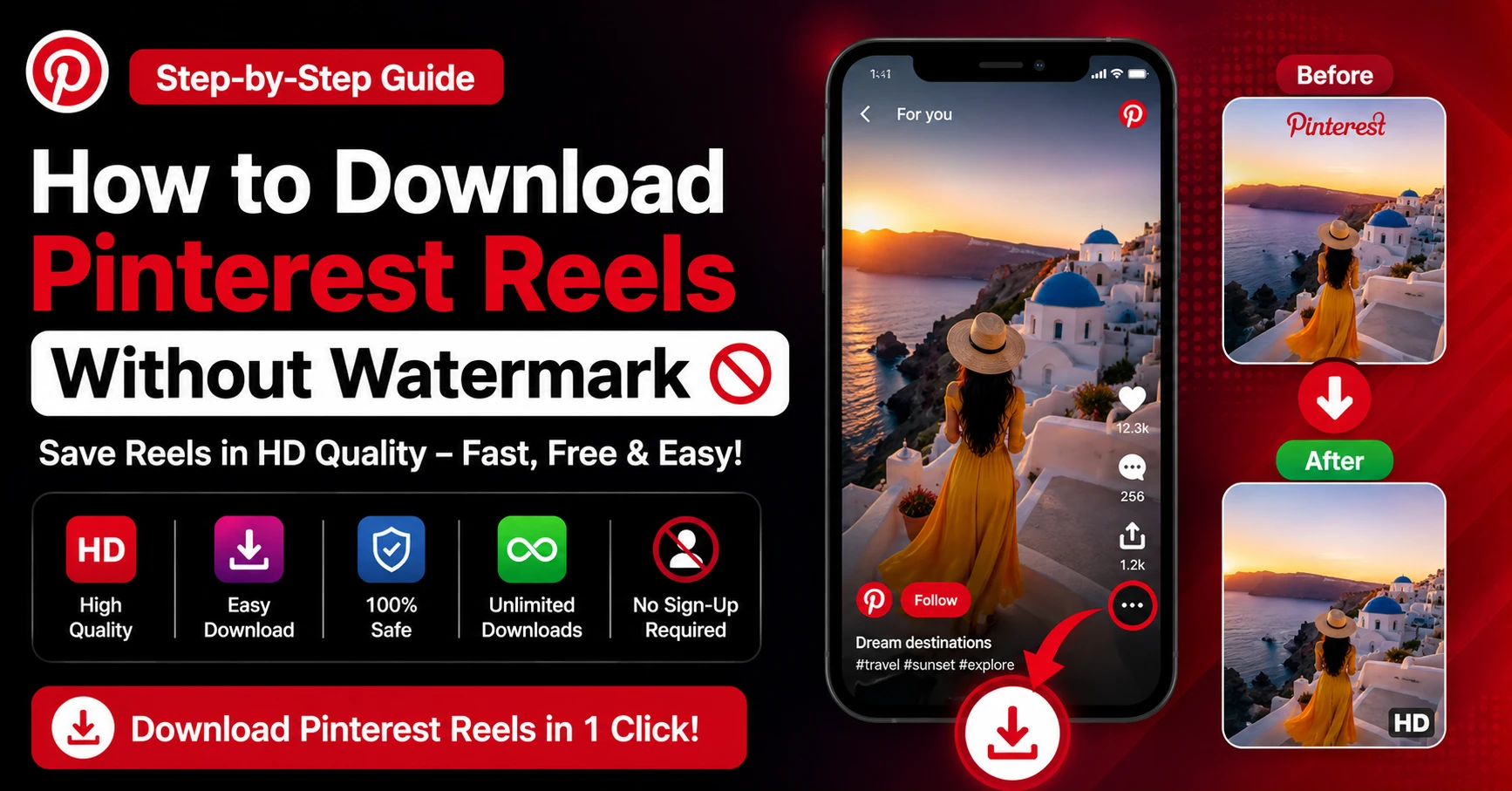
You found a Pinterest Reel that's exactly what you needed. Maybe it's a styling video, a satisfying DIY clip, a workout routine, or just an aesthetic loop that fits perfectly into a mood board you're building. You want to save it — cleanly, without some random watermark slapped across the middle of it.
Here's the frustrating part: Pinterest doesn't give you a download button. And most of the downloader tools out there either stamp their own logo on the video, give you a low-quality version, or bury the actual download behind five different popup ads and fake buttons.
This guide is about how to download Pinterest Reels without a watermark — properly, in the original HD quality, on any device. We'll cover exactly why watermarks appear in the first place, which methods actually work, and how to troubleshoot the things that go wrong.
No fluff. Just what you actually need to know.
Why Do Pinterest Reel Downloads Have Watermarks?
Before getting into the solution, it's worth understanding why watermarks show up at all. Because once you understand where they come from, it's obvious why some tools add them and others don't.
Where Watermarks Come From
When you download a video using a low-quality scraper tool, what usually happens is this: the tool doesn't actually fetch the original file from Pinterest's servers. Instead, it plays the video, records it through their own system, and then saves that recording. During that process, they overlay their own branding — usually a small logo or URL in the corner — as a way to advertise their service.
This is exactly the same problem as screen recording. You're not getting the original file. You're getting a re-encoded copy of a playback, with whatever the tool decided to add on top.
The Clean Alternative
The only way to get a truly watermark-free Pinterest Reel is to fetch the original MP4 file directly from Pinterest's content delivery network — without re-encoding it, without recording it, and without running it through any intermediate processing that adds overlays.
That's what Pin Video Download does. The Pinterest Reel Downloader specifically targets the raw video stream that Pinterest stores on their servers. What you download is identical to what was originally uploaded — clean, original, and completely free of watermarks or branding from anyone.
What Exactly Are Pinterest Reels?
Pinterest has gone through a lot of format changes over the years, and the terminology can be a little confusing. Let's clear that up quickly.
Pinterest Reels are short-form vertical video clips — similar in format to Instagram Reels or TikTok videos. They typically run anywhere from a few seconds to about a minute, are filmed or edited in a vertical 9:16 ratio, and are designed to be watched on mobile.
Pinterest introduced this format to compete with the short-video trend that's been dominating social media. You'll find Reels in the Pinterest home feed mixed in with regular pins, on creator profiles, and in search results when you look up trending topics.
How Reels Differ from Regular Pinterest Videos
Regular Pinterest video pins can be any length and any aspect ratio. They're usually horizontal or square, and they're often longer — tutorials, recipe videos, product showcases, that kind of thing.
Reels are specifically the short vertical format. The download process is essentially the same, but the file structure Pinterest uses for Reels can be slightly different — which is why some general video downloaders struggle with them while a dedicated tool handles them cleanly.
What About Idea Pins?
Idea Pins are Pinterest's multi-slide story format — think Instagram Stories but on Pinterest. They can contain a mix of video slides, image slides, and text. They're related to Reels but technically different.
The Pinterest Reel Downloader handles standard Reels. For Idea Pins specifically, the main Pin Video Download tool works better since it can process the multi-slide structure.
How to Download Pinterest Reels Without Watermark on iPhone
iPhone is where most people run into trouble because Safari handles downloads a little differently than desktop browsers. Here's the exact process.
Step 1: Find the Pinterest Reel Open the Pinterest app on your iPhone. Reels show up in your home feed as vertical videos that play automatically. Find the one you want to save and tap on it to open it in full view.
Step 2: Copy the Reel link Tap the share icon — it looks like a paper airplane or an upward arrow depending on which version of the Pinterest app you have. From the share options that pop up, tap "Copy link." The URL is now on your clipboard.
Step 3: Switch to Safari Close or minimize Pinterest and open Safari. In the address bar, type pinvideodownload.net/pinterest-reel-downloader or just go to pinvideodownload.net and tap the Reel Downloader option.
Step 4: Paste the link Tap the input field on the page and paste your Pinterest Reel link. You can long-press the field and tap Paste, or tap the Paste button built into the site.
Step 5: Tap Download Hit the Download button. The tool processes your link — usually takes 2 to 4 seconds — and locates the raw MP4 file for your Reel.
Step 6: Confirm the download A download link will appear. Tap it. Safari will either begin downloading immediately or show a small confirmation popup — tap Download to confirm if it appears.
Step 7: Find the video in Files This is where iPhone users often get confused. Safari saves downloaded files to the Downloads folder inside the Files app — not directly to your Photos. Open the Files app, go to the Downloads folder, and you'll find your Reel there.
Step 8: Save to Camera Roll Long-press the video file in Files and select "Save Video." This moves it to your Photos app, where it'll play in the Videos section. From there you can share it anywhere — WhatsApp, Instagram, iMessage, wherever.
How to Download Pinterest Reels Without Watermark on Android
Android is actually a bit smoother for this process because Chrome handles file downloads more directly than Safari.
Step 1: Copy the Pinterest Reel link Open Pinterest on your Android phone. Find the Reel, tap the share icon, and select "Copy link."
Step 2: Open Chrome and go to the Reel Downloader Open Chrome and navigate to pinvideodownload.net/pinterest-reel-downloader.
Step 3: Paste and tap Download Paste your link into the input field and tap the Download button. The tool will process the link and find the video.
Step 4: The file saves automatically Chrome saves the file directly to your Downloads folder. You'll see a small notification at the bottom of the Chrome window confirming the download. No extra steps needed.
Step 5: Find it in your Gallery Open your phone's Gallery app or Files app and look in Downloads. The Reel will be there as a clean MP4 file, ready to play or share.
How to Download Pinterest Reels Without Watermark on PC or Mac
Desktop is the easiest experience of all, especially if you have the Chrome Extension installed.
Using the Chrome Extension (Fastest Method)
If you haven't installed the Pin Video Download Chrome Extension yet, it's worth doing. Once installed, you just hover over any Reel on Pinterest and a download button appears directly on the pin. One click and it downloads. No tab switching, no link copying.
This is by far the fastest workflow if you download Pinterest content regularly.
Using the Web Tool on Desktop
If you prefer not to install an extension, the web tool works perfectly on desktop too.
Go to pinvideodownload.net/pinterest-reel-downloader in any browser. Copy the Pinterest Reel URL from your browser's address bar while viewing the pin, paste it into the tool, and click Download. The file saves to your Downloads folder.
On desktop, you also get the option to right-click the download link and select "Save Link As" to choose exactly where the file goes — handy if you're organizing content into specific project folders.
The Audio Problem: Why Some Pinterest Reels Download Without Sound
This is one of the most common complaints people have about Pinterest Reel downloads, and it's worth explaining properly because it confuses a lot of people.
Pinterest stores video content using adaptive streaming — meaning the video track and the audio track are sometimes kept as separate files on their servers. When you play a Reel inside the Pinterest app, the app automatically combines them for playback. But when a basic downloader tries to grab the file, it often only finds the video stream and misses the audio entirely.
The result is a Reel that plays perfectly in the Pinterest app but downloads as a silent video.
How Pin Video Download Solves This
The Reel Downloader doesn't just grab the first video file it finds. It identifies both the video manifest and the corresponding audio stream, merges them server-side, and delivers a single complete MP4 file with fully synced audio.
This is why you get a video with sound instead of a silent clip. If you've ever downloaded a Pinterest Reel from another tool and got no audio, this is exactly the reason — and exactly the problem that Pin Video Download is built to avoid.
If you ever do get a silent video from our tool — which is rare but can happen on certain pins — refresh the page and try downloading again. A second attempt almost always resolves it.
What Quality Will the Downloaded Reel Be?
Short answer: whatever quality Pinterest has available on their servers, which is usually pretty good.
Most Pinterest Reels are stored at 1080p (full HD) or 720p depending on what resolution the creator originally uploaded. Our tool always checks for the highest available resolution first and serves that version to you.
The video codec is typically H.264, which is the standard format for MP4 files and plays on literally every device — iPhones, Android phones, Windows PCs, Macs, smart TVs, everything.
One thing to keep in mind: if the original Reel was uploaded in low quality, that's what you'll get. We fetch the source file as-is — we can't improve on what Pinterest has stored.
Can You Download Pinterest Reels and Repost Them?
This comes up a lot, so it's worth addressing directly.
Downloading a Pinterest Reel for personal use — saving it for a mood board, watching it offline, using it as a reference for your own projects — is generally fine and falls under fair use in most regions.
Reposting someone else's Reel to your own social media account, using it in commercial content, or distributing it as your own work is a different matter. The content belongs to the person who created it, and using it without permission can create copyright issues.
The safe approach: if you want to repost a Reel, reach out to the creator and ask. Most creators are happy to be credited and shared — they just want to know about it.
Other Pinterest Content You Can Download
While you're at it, it's worth knowing that the same workflow applies to other types of Pinterest content.
For high-resolution images and photography pins, the Pinterest Image Downloader fetches the original full-size file — way better than screenshotting. Screenshots give you a compressed version at whatever resolution your screen happens to be. The original file is almost always much higher quality.
For animated GIFs and looping animations, the Pinterest GIF Downloader handles those specifically. Pinterest sometimes converts GIF uploads to MP4 loops on the backend, and the GIF downloader detects both formats automatically.
And for longer-form Pinterest videos — tutorials, recipes, product videos that aren't in Reel format — the main Pinterest Video Downloader tool handles those with the same watermark-free, original-quality approach.
Troubleshooting Pinterest Reel Downloads
Even with the right tool, things occasionally don't go as planned. Here's what to do when something isn't working.
The Reel URL isn't being recognized
Make sure you copied the link from the actual Reel pin — not from a board preview or a shared link that went through a redirect service. Go directly to the Reel, tap share, and copy the link fresh. The URL should start with pinterest.com/pin/ or pin.it/ for mobile shortened links.
The download button isn't appearing after processing
Try refreshing the page and pasting the link again. If it still doesn't work, the Reel might be from a private account or a restricted pin. Our tool can only access publicly available content — private account pins aren't accessible.
The downloaded file won't play on my device
Check that the file downloaded completely — a partial download can result in a file that won't open. Delete the incomplete file, go back to the tool, and download again with a stable internet connection. If you're on iPhone, make sure you're opening the file from the Files app, not trying to preview it directly from Safari's download manager.
The Reel quality is lower than expected
This comes down to what Pinterest has stored. If a creator uploaded a Reel at 480p or 720p, that's the source file. We serve the highest available version, but we can't generate quality that isn't there in the original. If quality matters a lot to you, look for pins where the original content appears sharp and clear when playing inside Pinterest — that's the best indicator of the source file quality.
I'm getting a "content not available" error
This usually means the pin has been deleted by the creator or removed by Pinterest. Double-check that the Reel is still live by going back to Pinterest and viewing it there. If it plays fine in Pinterest but still throws an error in the downloader, wait a few minutes and try again — Pinterest's CDN occasionally has temporary issues serving files.
Frequently Asked Questions
Wrapping Up
Downloading Pinterest Reels without a watermark comes down to using a tool that fetches the actual source file rather than re-recording it. Screen recording gives you a blurry copy with your interface baked in. Basic scrapers give you a watermarked version that advertises their service. Neither is what you actually want.
The Pinterest Reel Downloader at Pin Video Download pulls the original MP4 directly from Pinterest's servers — clean, full HD, with synced audio, and zero watermarks from anyone.
Copy the link from Pinterest, paste it in, tap download, and you're done. Whether you're on iPhone, Android, or desktop, the process takes under a minute and gives you the original file exactly as it was uploaded.
Related Guides
How to Save Pinterest GIFs to Camera Roll (iPhone & Android)
GIFs on Pinterest are weirdly addictive. Whether it's a satisfying slime loop, a minimalist animation, a cooking technique, or just a funny reaction clip — you find one and suddenly you need it on your phone. Like, immediately. The problem? Pinterest treats GIFs exactly the same way it treats videos — you can save them…
How to Download Pinterest Videos on Android
You're scrolling through Pinterest on your Android phone and you find a video you absolutely need to keep. A DIY tutorial, an aesthetic loop, a recipe you want to try later. You look for a download button and… it's not there. Pinterest doesn't give Android users a way to save videos locally. You can pin…
Latest From Our Blog
Try Our Free Pinterest Download Tools
Need to download other media formats? Save any content from Pinterest instantly using our direct extraction tools:
Pinterest Video Downloader →
Extract and download public Pinterest videos in high-definition MP4 format.
Pinterest GIF Downloader →
Download animated GIF loops or convert them to lightweight MP4 videos.
Pinterest Image Downloader →
Save high-resolution JPG images and carousels in original HD quality.
Pinterest Reel Downloader →
Save Idea Pins and short Pinterest video stories with synced audio.