How to Save Pinterest Videos on PC and Mac
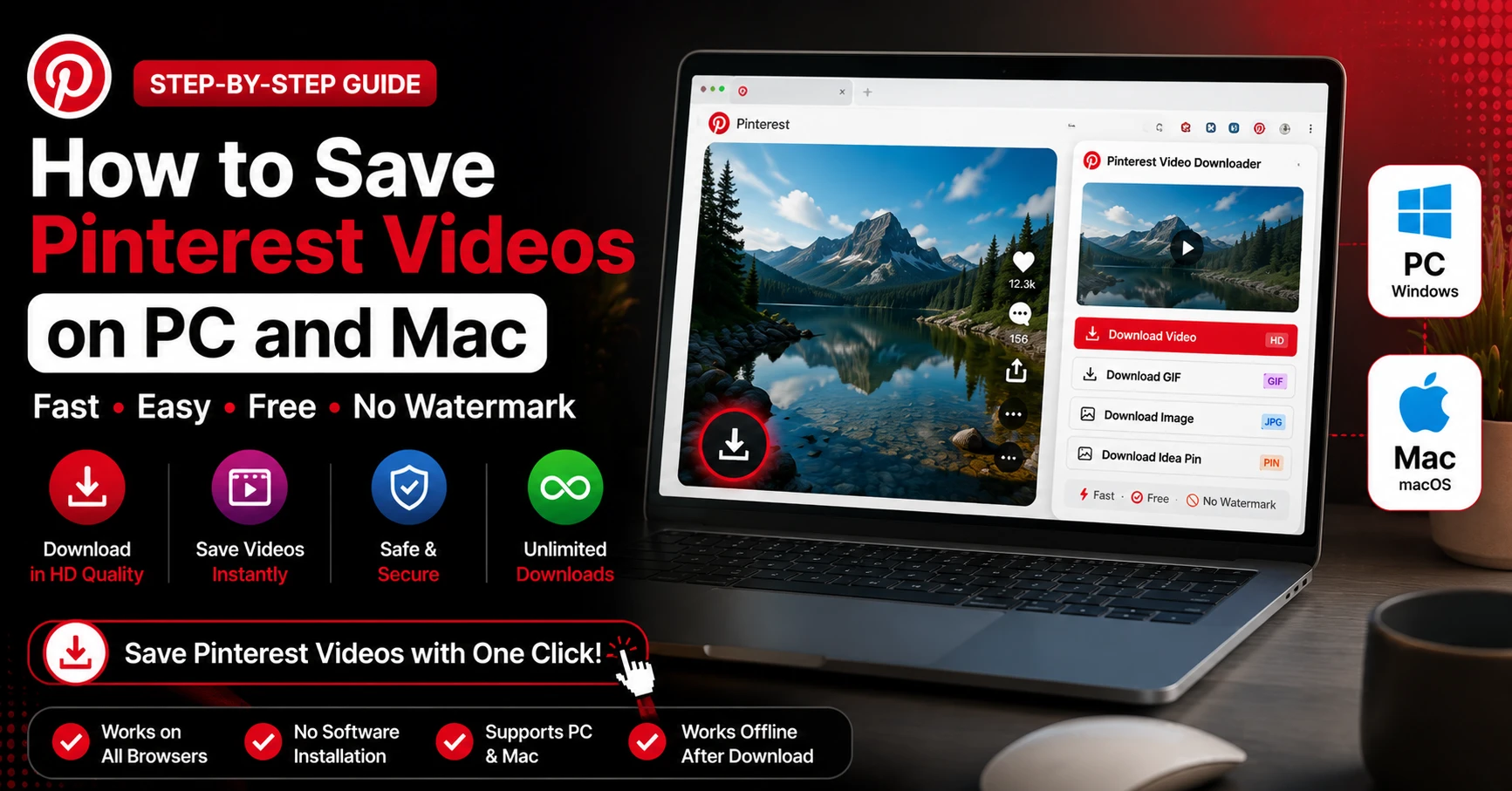
Saving Pinterest videos on a desktop should be the easiest thing in the world. You've got a full keyboard, a proper browser, a fast internet connection, and a big screen. And yet — Pinterest still doesn't give you a download button.
It doesn't matter whether you're on a Windows PC or a MacBook. The experience is the same: you find a video you want to keep, you look for a way to save it, and there's nothing there. Just a share button, a board save option, and a "Copy link" menu item that doesn't seem to do much on its own.
This guide is going to change that. We'll cover exactly how to save Pinterest videos on PC and Mac — multiple methods, step by step, with troubleshooting for when things go wrong. By the end, you'll have a workflow that takes under 30 seconds per video.
Why Pinterest Doesn't Let You Download Videos on Desktop
Before jumping into solutions, it's worth spending a minute on why this limitation exists — because understanding it helps you pick the right download method.
Pinterest's entire business model is built around keeping users on their platform. Every pin you save to a board is a reason to come back. Every notification about a pin you liked is a reason to open the app. If you could download videos directly and store them locally, you'd have less reason to return to Pinterest.
There's also a copyright angle. Pinterest's Terms of Service technically restricts downloading content without the creator's permission. They don't provide download tools partly to avoid facilitating potential copyright infringement at scale.
None of this means downloading is impossible — it just means Pinterest isn't going to help you do it. You need a different approach.
Why Desktop Is Actually the Best Place to Download Pinterest Videos
Here's the good news: even though Pinterest doesn't offer downloads, desktop browsers are actually the best environment for saving Pinterest videos.
The file management is easier — you can choose exactly where files save, rename them, and organize them into folders without dealing with the limited file systems on mobile. The Chrome Extension works on desktop. And the web tool at Pin Video Download loads faster and is easier to use on a full-size screen.
If you regularly download Pinterest content, desktop is the way to go.
Method 1: Using Pin Video Download (Recommended)
The cleanest and most reliable method for saving Pinterest videos on PC or Mac is Pin Video Download. It fetches the original MP4 file directly from Pinterest's servers — no re-encoding, no watermarks, full HD quality.
This works in any desktop browser: Chrome, Firefox, Safari on Mac, Edge, Brave — all of them.
Step 1: Find your Pinterest video Open Pinterest in your browser and navigate to the video you want to save. Click on the pin to open it in full view so you can see the video playing.
Step 2: Copy the URL from your address bar Look at the address bar at the top of your browser. The URL should look something like pinterest.com/pin/123456789012345678/. Click on the address bar to select the full URL, then copy it — Ctrl+C on Windows or Cmd+C on Mac.
Alternatively, you can right-click the pin and look for "Copy link address" or use the share button on the pin itself to copy the link.
Step 3: Open a new tab and go to pinvideodownload.net Open a new tab and go to pinvideodownload.net. The site loads instantly and works in any browser.
Step 4: Paste the Pinterest URL Click on the input field at the top of the page and paste your Pinterest URL — Ctrl+V on Windows or Cmd+V on Mac.
Step 5: Click the Download button Hit the red Download button. The tool processes your link in 2 to 4 seconds and locates the video file on Pinterest's servers.
Step 6: Save the file to your computer A download link will appear. Click it and your browser will either save the file automatically to your Downloads folder, or ask you where you want to save it. If you want to choose the save location, right-click the download link and select "Save Link As" — this lets you pick exactly which folder the file goes to.
Step 7: Open and verify the file Navigate to wherever the file saved and open it. It should play in full HD with audio. On Windows, it opens in the Movies & TV app or Windows Media Player by default. On Mac, it opens in QuickTime.
Method 2: Using the Chrome Extension (Fastest for Regular Users)
If you download Pinterest videos on a regular basis, the Pin Video Download Chrome Extension is genuinely worth installing. It cuts the process from 7 steps down to 1.
Once the extension is installed, you hover over any video pin on Pinterest and a download button appears directly on the pin. Click it once. The video downloads. You never leave Pinterest, never copy a link, never open a new tab.
Installing the Chrome Extension on PC or Mac
Open Chrome and visit the Chrome Web Store — just search "Pin Video Download" and you'll find the official listing. Click "Add to Chrome" and confirm the installation. The whole thing takes about 60 seconds.
After installation, go to pinterest.com and start browsing. Hover over any video pin and the download button appears automatically. Click it and the file saves to your Downloads folder.
This method works identically on Windows and Mac — Chrome behaves the same on both operating systems.
Why the Extension Is Better for High-Volume Downloading
If you're building mood boards, doing design research, or collecting reference videos for a creative project, you might be downloading dozens of pins in a single session. Copying and pasting links one by one gets tedious fast.
With the extension, you can scroll through Pinterest and download videos as you go — no tab switching, no extra steps. It's a genuinely different experience when you're working through a lot of content at once.
How to Save Pinterest Videos on Mac Specifically
The process on Mac is almost identical to PC, but there are a couple of Mac-specific things worth knowing.
Safari on Mac
Safari is the default browser on Mac, and it works fine with the web tool at pinvideodownload.net. However, Safari handles downloads slightly differently than Chrome.
When you click a download link in Safari, it saves to your Downloads folder automatically — you can see the progress in the toolbar download indicator. If the video tries to play in Safari instead of downloading, right-click the download link and select "Download Linked File." This forces Safari to save it rather than trying to play it inline.
According to Apple's support documentation, Safari stores downloads in ~/Downloads by default. You can change this in Safari Preferences → General → File download location if you want Pinterest videos to go somewhere specific.
Chrome on Mac
Chrome on Mac behaves exactly like Chrome on Windows for this purpose. The extension works, the web tool works, and files save to your Downloads folder. If you want to change the save location, go to Chrome Settings → Downloads and either set a permanent folder or enable "Ask where to save each file."
Organizing Downloaded Videos on Mac
One thing Mac users often find useful: create a dedicated folder for Pinterest downloads. Go to Finder, navigate to your Downloads folder, and create a new folder called "Pinterest Videos" or whatever makes sense for your workflow. Then set Chrome or Safari to ask where to save each file, and direct Pinterest downloads to that folder.
Over time, this keeps your Downloads folder from getting cluttered with MP4 files.
How to Save Pinterest Videos on Windows PC
Windows is slightly more flexible than Mac for file management, which makes organizing Pinterest downloads a little easier.
Setting Up a Dedicated Download Folder
Before you start downloading, it's worth creating a dedicated folder. Open File Explorer, navigate to wherever you want to store Pinterest content — your Documents folder or Desktop are common choices — and create a new folder. Call it "Pinterest Downloads" or something similar.
Then in Chrome, go to Settings → Downloads → Change, and point it to your new folder. Every Pinterest video you download will go there automatically, neatly organized and easy to find.
Using Edge on Windows
Microsoft Edge is built into Windows and works fine for downloading Pinterest videos through the web tool. The process is the same — copy the Pinterest URL, paste it into pinvideodownload.net, click download, and save the file.
Edge has its own download manager that you can access from the toolbar. It shows download progress and lets you open the file location directly from the download notification — useful if you're not sure where the file went.
Windows Media Player vs. VLC
Downloaded Pinterest videos are standard MP4 files, so they'll play in Windows Media Player, the Movies & TV app, or VLC. If you're doing anything with the video beyond just watching it — editing, resizing, converting — VLC is a free and excellent choice that handles any video format without needing additional codecs.
Downloading Different Types of Pinterest Content on Desktop
The main video downloader handles standard Pinterest video pins. But Pinterest has a few different content formats, and there are dedicated tools for some of them.
Pinterest Reels on Desktop
Pinterest Reels are short vertical video clips. The Pinterest Reel Downloader is optimized for this format — it handles the audio/video merging that Reels sometimes require. Copy the Reel URL, paste it into the Reel Downloader, and download. Same process, slightly better results for this specific format.
Pinterest GIFs on Desktop
Animated GIFs from Pinterest sometimes get stored as MP4 loops on Pinterest's servers rather than as actual GIF files. The Pinterest GIF Downloader detects which format the animation is stored in and downloads accordingly. If you just use the main video tool for GIFs, you'll sometimes get an MP4 when you wanted a GIF — the dedicated tool handles this more cleanly.
Pinterest Images on Desktop
For high-resolution image pins, the Pinterest Image Downloader fetches the original full-size file from Pinterest's servers. This is particularly useful for photography, design inspiration, and fashion references where you want the highest possible resolution — not the compressed version that appears in Pinterest's interface.
Troubleshooting: Common Issues When Saving Pinterest Videos on PC and Mac
The video starts playing instead of downloading
This happens when your browser tries to play the MP4 inline rather than saving it. The fix is simple: right-click the download link and select "Save Link As" (Chrome/Firefox) or "Download Linked File" (Safari). This bypasses the browser's built-in video player and saves the file directly.
The file downloaded but I can't find it
Check your browser's default download location. In Chrome, click the three-dot menu → Downloads to see a list of recent downloads with file locations. In Safari on Mac, click the download indicator in the toolbar. In Edge, look for the download notification that appears in the corner of the screen after a download completes.
If you're still not finding it, open your operating system's search — Windows Search on PC or Spotlight on Mac — and search for the filename or for "*.mp4" to find all MP4 files downloaded recently.
The download speed is very slow
This is usually a server-side issue rather than a problem with the tool. Pinterest's CDN occasionally throttles certain file requests during peak hours. Try downloading at a different time, or switch to a different network connection if possible. Files usually download at full speed on a second or third attempt.
The video quality is lower than expected
The quality depends on what was uploaded originally. Pinterest stores videos at whatever resolution the creator uploaded — typically 1080p or 720p for most content. If a video looks sharp inside Pinterest but the download looks lower quality, try downloading again — occasionally a lower-quality cached version gets served instead of the full-resolution file.
The link isn't working or throws an error
Make sure the pin is still publicly available. If the creator deleted it or set their account to private after you found the pin, the file won't be accessible. Also double-check that you copied the complete URL — sometimes clicking on the address bar only partially selects the URL if you click in the middle of it. Select all (Ctrl+A or Cmd+A) before copying to make sure you get the full link.
The Chrome Extension isn't showing download buttons
This usually means the extension needs a page refresh to activate. Press F5 or Ctrl+R on Windows, or Cmd+R on Mac, to reload the Pinterest page. If it still isn't showing buttons, go to chrome://extensions and make sure the Pin Video Download extension is enabled (the toggle should be blue). If you recently updated Chrome, restarting the browser completely sometimes fixes extension issues.
Tips for Organizing Pinterest Video Downloads on Your Computer
Downloading is one thing. Keeping your downloaded files organized is another — and if you're downloading content regularly, having a system from the start saves a lot of headaches later.
Create folders by project or topic. Instead of dumping everything into one Downloads folder, create subfolders for different projects. "Mood Board Q3," "Kitchen Design Refs," "Fashion Inspo" — whatever matches how you actually use the content.
Rename files as you download them. Pinterest video filenames are usually just strings of numbers that mean nothing. Right after downloading, rename the file to something descriptive — "living-room-lighting-inspo.mp4" is a lot more useful than "1234567890.mp4" six months later.
Keep a note of the original Pinterest URL. If you ever need to go back to the original pin — to credit the creator, find more content from the same person, or check something about the original upload — having the URL saved somewhere saves time. A simple text file or spreadsheet with file names and their original URLs works well for this.
Frequently Asked Questions
Wrapping Up
Saving Pinterest videos on PC or Mac is genuinely simple once you have the right tool. Pinterest doesn't make it easy by design, but the combination of Pin Video Download and the Chrome Extension covers every use case — occasional downloads through the web tool, high-volume session work through the extension.
Copy the URL, paste it in, save the file. Or install the extension and cut it down to a single click. Either way, you're getting the original HD file with no watermarks, no re-encoding, and no quality loss.
If you're also downloading on mobile, the same web tool works on iPhone and Android through Safari and Chrome respectively — no separate tool needed.
Related Guides
How to Download Pinterest Reels Without Watermark (Full Guide)
You found a Pinterest Reel that's exactly what you needed. Maybe it's a styling video, a satisfying DIY clip, a workout routine, or just an aesthetic loop that fits perfectly into a mood board you're building. You want to save it — cleanly, without some random watermark slapped across the middle of it. Here's the…
How to Save Pinterest GIFs to Camera Roll (iPhone & Android)
GIFs on Pinterest are weirdly addictive. Whether it's a satisfying slime loop, a minimalist animation, a cooking technique, or just a funny reaction clip — you find one and suddenly you need it on your phone. Like, immediately. The problem? Pinterest treats GIFs exactly the same way it treats videos — you can save them…
Latest From Our Blog
Try Our Free Pinterest Download Tools
Need to download other media formats? Save any content from Pinterest instantly using our direct extraction tools:
Pinterest Video Downloader →
Extract and download public Pinterest videos in high-definition MP4 format.
Pinterest GIF Downloader →
Download animated GIF loops or convert them to lightweight MP4 videos.
Pinterest Image Downloader →
Save high-resolution JPG images and carousels in original HD quality.
Pinterest Reel Downloader →
Save Idea Pins and short Pinterest video stories with synced audio.