How to Convert Pinterest Videos to MP3
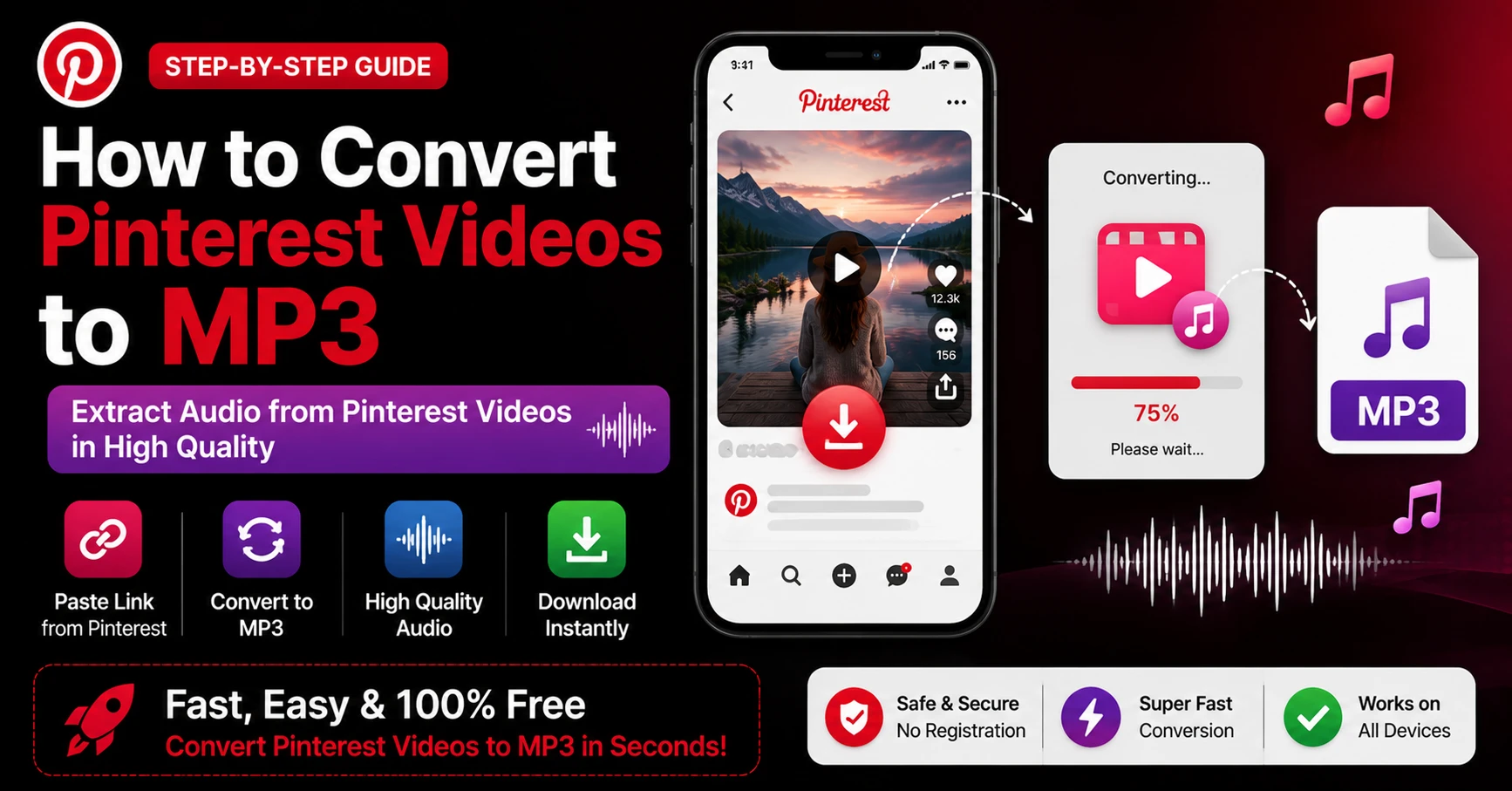
Sometimes you don't need the video at all. Maybe it's a meditation track someone posted as a calming loop. A background music reel you want to use while working. A podcast-style Idea Pin where the value is entirely in what's being said, not what's being shown. A cooking tutorial where the step-by-step audio is all you actually need.
Whatever the reason, extracting just the audio from a Pinterest video is a completely legitimate thing to want. And it's more doable than most people realize — even though Pinterest definitely doesn't make it obvious.
This guide covers exactly how to convert Pinterest videos to MP3 — the tools that work, the step-by-step process on every device, what quality you can expect, and what to watch out for. No filler, no fake "premium unlock" tricks. Just what actually works.
Why Would You Want Audio From a Pinterest Video?
Before getting into the how, it's worth covering the why — because the use case shapes which method makes the most sense for you.
Music and Background Tracks
A huge amount of content on Pinterest uses background music that isn't easily findable anywhere else. Indie artists, ambient producers, and small creators post short loops and music reels that get thousands of saves. If you find a track you love, sometimes the only way to keep it is to extract it from the video.
Meditation and Ambient Audio
Pinterest has a surprisingly active wellness community. Guided meditations, breathing exercises, nature soundscapes, and sleep audio get posted as video loops — but the visuals are usually just a static image or a slow animation. The entire value is in the audio.
Podcast-Style Content
Some Pinterest creators post longer educational or conversational content as video pins — talking head clips, interviews, narrated tutorials. If you want to listen while commuting or exercising, converting to MP3 makes much more sense than keeping it as a video.
Cooking and Tutorial Audio
Following a cooking tutorial while actually cooking is awkward when you need to keep glancing at your phone screen. Having the audio as an MP3 lets you listen hands-free without video.
Music Identification and Research
Designers, filmmakers, and content creators often use Pinterest to find music for projects. Downloading the audio in MP3 format makes it easier to share with a sound editor or reference in a brief.
Understanding What You're Actually Extracting
Here's something important to understand before you start: Pinterest videos don't store audio and video as a single combined file on their servers.
Pinterest uses adaptive streaming, which means the video stream and the audio stream are stored separately and combined during playback. This is actually good news for MP3 extraction — it means the audio track exists as its own file, which can theoretically be extracted cleanly without having to strip it from a combined video file.
Most basic download tools only grab the video stream and miss the audio entirely — which is why downloading a Pinterest video sometimes gives you a silent clip. A proper download tool like Pin Video Download merges both streams automatically, giving you a complete MP4 with audio. From there, converting to MP3 is a separate step.
Some tools claim to extract Pinterest audio directly to MP3 in one step. These can work, but the quality and reliability varies — we'll cover both the one-step and two-step approaches here.
Method 1: Download the Video First, Then Convert to MP3
This is the most reliable approach and gives you the best audio quality. It's a two-step process but each step is simple.
Step 1: Download the Pinterest Video
First, get the complete MP4 file with audio using Pin Video Download.
On iPhone: Open Pinterest, find the video, tap the share icon, and copy the link. Open Safari, go to pinvideodownload.net, paste the link, and tap Download. The file saves to your Files app Downloads folder.
On Android: Copy the Pinterest video link from the share menu. Open Chrome, go to pinvideodownload.net, paste the link, and tap Download. The file saves directly to your Downloads folder.
On PC or Mac: Copy the Pinterest video URL from your browser's address bar. Open a new tab, go to pinvideodownload.net, paste the URL, and click Download. Save the MP4 file to your computer.
If you're downloading Pinterest Reels specifically, use the Pinterest Reel Downloader — it handles the audio-video merging for Reels more reliably than the general tool.
Step 2: Convert the MP4 to MP3
Once you have the MP4 file, you need a converter to extract the audio. Here are the best options for each platform.
On PC or Mac — VLC Media Player (Free) VLC is a free, open-source media player that also handles conversion. It's available for Windows, Mac, and Linux.
Open VLC, go to Media → Convert/Save (Windows) or File → Convert/Stream (Mac). Click Add and select your downloaded Pinterest MP4. Click Convert/Save, then choose Audio — MP3 as the output profile. Choose a destination file name and click Start. VLC will extract the audio and save it as an MP3 in seconds.
On PC — Any Audio Converter (Free) Search for "Any Audio Converter" — it's a free Windows tool specifically designed for this. Drag in your MP4 file, select MP3 as output format, set your quality preference (320kbps for best quality), and click Convert. Clean, fast, no ads.
On Mac — iTunes / Apple Music Apple's built-in music app can convert video files to MP3. Open iTunes or Apple Music, go to File → Import, select your MP4. Once imported, right-click the track and select Create MP3 Version. The MP3 file will appear in your library and can be exported from there.
Alternatively, use Permute — a paid but excellent Mac converter — or the free online tools below.
Online Converter — CloudConvert CloudConvert is a reliable online conversion tool. Upload your downloaded MP4, select MP3 as output format, set quality to 320kbps, and click Convert. Download the resulting MP3. Works on any device with a browser.
On iPhone — The Shortcuts App iPhone's built-in Shortcuts app can handle basic audio extraction. Create a shortcut with the "Encode Media" action, set it to audio only, and point it at your downloaded MP4. The output saves as an M4A file — which is Apple's audio format and plays on all Apple devices. To get a proper MP3, you'll need a conversion app from the App Store like "MP3 Converter — Audio Extractor."
On Android — MP3 Video Converter App The Play Store has several reliable MP3 extraction apps. "MP3 Video Converter" by Springwalk is free and consistently rated well. Install it, import your downloaded Pinterest MP4, select MP3 output, choose quality (320kbps recommended), and tap Convert. Done in seconds.
Method 2: Direct Pinterest Audio Extraction (One-Step)
Some tools claim to extract Pinterest audio directly to MP3 without downloading the video first. This can work for certain types of Pinterest content — particularly when the audio track is stored as a clean standalone file on Pinterest's servers.
The reliability is lower than the two-step method because it depends entirely on how Pinterest has structured the specific video's files on their backend. For music reels and audio-heavy content, it often works. For more complex video formats, it sometimes fails or gives you lower quality audio.
If you want to try the one-step approach, search for "Pinterest to MP3 converter" and look for a web-based tool that doesn't require installation. Paste your Pinterest URL, wait for it to process, and download the audio file if it extracts cleanly. Always preview the audio before deleting your original pin link — quality and completeness can vary.
For anything where audio quality genuinely matters — music tracks, meditations, important tutorials — stick with the two-step method. You'll get better results.
What Audio Quality Can You Expect?
This is where expectations need to be realistic.
The quality of the extracted MP3 depends entirely on what was uploaded to Pinterest originally. Pinterest's audio encoding for video content typically runs at 128kbps AAC — which is decent but not audiophile quality. When you convert that to MP3, you're working with the same source material.
Setting your MP3 output to 320kbps doesn't actually improve the quality beyond what the source contains — it just means the MP3 file won't add additional compression artifacts on top of what was already there. Think of it like printing a photograph — the output can't be sharper than the original file.
For most use cases — listening to background music, following a tutorial, referencing audio content — 128kbps AAC converted to 192kbps or 256kbps MP3 is perfectly fine. You won't notice the quality difference in most listening situations.
For music you genuinely care about audio quality for, the better approach is to find the original track through Shazam or SoundHound — apps that identify music from audio. Record a few seconds of the Pinterest video playing, let the app identify the track, and then stream or purchase the high-quality original from Spotify, Apple Music, or Bandcamp. This gives you significantly better audio than anything extracted from a Pinterest video.
Converting Pinterest Audio on Different Devices
iPhone and iPad
The iPhone process involves a few more steps than Android or desktop, mainly because iOS is more restrictive about file handling.
After downloading the Pinterest MP4 using Safari and pinvideodownload.net, the file sits in your Files app under Downloads. From there:
Open the Files app and find your downloaded MP4. Tap and hold it, then tap Share. Look for an audio conversion app in your share sheet — if you've installed one from the App Store, it should appear here. Apps like "The Audio Converter" or "MP3 Converter" integrate into the iOS share sheet for easy one-tap conversion.
Alternatively, use a web-based converter like CloudConvert. Open Safari, go to cloudconvert.com, upload your MP4 from Files, select MP3 output, and download the converted file. It saves back to your Files app.
Android
Android is the most flexible platform for this. After downloading the Pinterest MP4 with Chrome using pinvideodownload.net, open a converter app from the Play Store, import the file from Downloads, convert to MP3, and done. The whole process takes under two minutes.
The file ends up in your Music folder or the converter app's output folder, depending on the app. Most Android music players will pick it up automatically.
Windows PC
On Windows, VLC is the cleanest free option. Install it from videolan.org, use the Convert/Save function, and you have a proper MP3 in whatever folder you choose within a minute of starting the conversion.
If you prefer a dedicated converter tool, Audacity is a free, professional-grade audio editor that can open MP4 files and export them as MP3. It's more complex than you need for simple conversion, but if you also want to trim the audio, adjust volume, or remove background noise, Audacity handles all of that.
Mac
VLC works on Mac exactly as it does on Windows. Alternatively, HandBrake is a free Mac tool primarily known for video conversion but handles audio extraction too.
For a simpler experience, Permute 3 from the Mac App Store is a paid option ($14.99) that makes conversion genuinely simple — drag in the file, select output format, done. Worth it if you convert files regularly.
Copyright Considerations for Pinterest Audio
Everything covered in the copyright section applies to audio extraction too — actually, with a few additional wrinkles specific to music.
Music on Pinterest videos is almost always copyrighted. Even a 30-second clip of a song is protected by copyright. Extracting that audio for personal listening is generally fine under fair use principles. Sharing the extracted audio file, uploading it to a streaming platform, or using it in your own content without a license is infringement.
Music licensing is a separate and more complex area than general video copyright. Songs have two copyrights: one for the composition (lyrics and melody, owned by the songwriter or publisher) and one for the recording (owned by the record label or artist). Both need to be licensed for commercial use.
If you want to use music from a Pinterest video in a YouTube video, Instagram Reel, or any publicly distributed content, the safest approach is to identify the track and either use a royalty-free version, license it properly, or find an alternative from a licensed music library.
Musicbed, Artlist, and Epidemic Sound are licensing platforms where you can find music legally cleared for content creation. If you found a track on Pinterest and love the vibe, these platforms often have similar-sounding alternatives that are properly licensed.
When to Just Use Shazam Instead
Honestly — if you heard a song in a Pinterest video and want to keep it, Shazam is often faster and gives better quality than converting the Pinterest audio to MP3.
Open Shazam or the Shazam feature built into iPhones (Shazam is integrated into iOS Control Center), play the Pinterest video, and let Shazam identify the track in a few seconds. From the Shazam result, you can open the song directly in Spotify, Apple Music, or YouTube Music with a single tap.
You get the full-quality, properly licensed version of the song in your streaming library without any downloading or conversion. For music specifically, this beats the Pinterest-to-MP3 route almost every time.
The Pinterest-to-MP3 conversion approach makes more sense for:
- Original compositions that won't be on streaming platforms
- Spoken word content, tutorials, and meditations
- Sound effects and ambient audio
- Content where the audio isn't commercially available elsewhere
Troubleshooting Common Issues
The converted MP3 has no audio
This means the MP4 you downloaded was a silent video — the audio stream wasn't included. Go back to pinvideodownload.net and re-download the Pinterest video. Make sure you're using a tool that merges the audio stream — for Reels specifically, use the dedicated Pinterest Reel Downloader which handles audio merging automatically.
The audio quality sounds really bad
Check two things: First, what was the original video quality? Play it in Pinterest — if it sounds bad there, the source is low quality. Second, what bitrate are you exporting at? Use at least 192kbps for acceptable quality, 320kbps for best results.
The conversion is taking very long
Large MP4 files take longer to convert. A 5-minute video at HD quality might be 100MB+ and can take a minute or two to convert even on a fast computer. Online converters take longer due to upload time. If it's taking more than 10 minutes, something has probably stalled — cancel and try again.
The MP3 file won't play on my phone
Make sure the file has the correct .mp3 extension. Some converters save files as .m4a (Apple's format) or .aac — these play fine on most devices but might confuse older music players. If needed, rename the extension to .mp3 or use a media player like VLC which plays any format.
I downloaded the MP4 but can't find it to convert
Check your browser's download folder. On iPhone, it's in Files → Downloads. On Android, it's in the Downloads folder in your Gallery or Files app. On PC, it's usually in C:\Users[username]\Downloads. On Mac, it's in ~/Downloads, accessible from Finder's sidebar.
Frequently Asked Questions
Wrapping Up
Converting Pinterest videos to MP3 is a two-step process that's simpler than it sounds. Download the video with audio intact using Pin Video Download, then extract the audio using VLC, CloudConvert, or a dedicated converter app depending on your device.
The quality will be as good as what Pinterest has stored — typically solid for most listening purposes, though not audiophile grade. For music specifically, Shazam often gives you a faster path to the full-quality track on a proper streaming platform.
If you're extracting spoken word content, ambient audio, tutorials, or original compositions that aren't available elsewhere, the Pinterest-to-MP3 route works well. Follow the steps above for your device, use 256kbps or 320kbps MP3 output, and you'll have clean, usable audio in a few minutes.
Related Guides
Is It Legal to Download Pinterest Videos? (The Honest Answer)
This is one of those questions where most websites either dodge the answer completely or give you a legal-sounding wall of text that doesn't actually help. So let's skip all of that and just be direct. The short answer is: it depends on what you do with the video after you download it. Downloading a…
How to Download Private Pinterest Videos
Let's get the honest answer out of the way first: if a Pinterest video is on a truly private board — one that the creator has locked down to only themselves — there is no tool, no trick, and no workaround that will let you download it. Not legitimately, anyway. But here's the thing: a…
Latest From Our Blog
Try Our Free Pinterest Download Tools
Need to download other media formats? Save any content from Pinterest instantly using our direct extraction tools:
Pinterest Video Downloader →
Extract and download public Pinterest videos in high-definition MP4 format.
Pinterest GIF Downloader →
Download animated GIF loops or convert them to lightweight MP4 videos.
Pinterest Image Downloader →
Save high-resolution JPG images and carousels in original HD quality.
Pinterest Reel Downloader →
Save Idea Pins and short Pinterest video stories with synced audio.